Make a phone video small enough to e-mail or send in a chat
Shrink a 79 MB video under 25 MB for e-mail, then trim it under 10 MB for a chat app. Covers sound, playback and what to do when a target will not fit.
By the operator of Dotori Tools5 min read
Open Video Compressor & TrimmerA 40-second phone clip can already be tens of megabytes.
This guide uses the Video Compressor to bring a 79.0 MB clip under 25 MB for e-mail, then trims it under 10 MB, taking a chat app with a small limit as the example.
What you need
- The video. My sample is a 40-second clip made to look like a phone recording, VID_20261012_143015.mp4: 1920×1080, 30 fps, 79,006,647 bytes.
- The limit on the other end. Gmail Help gives 25 MB for personal accounts and replaces attachments over the limit with a Google Drive link (checked 17 October 2026). For a chat app, check that app’s own help.
- A current browser. I used Chrome on Windows. The tool page says “Runs on your device. Nothing is uploaded.”
1. Add the video
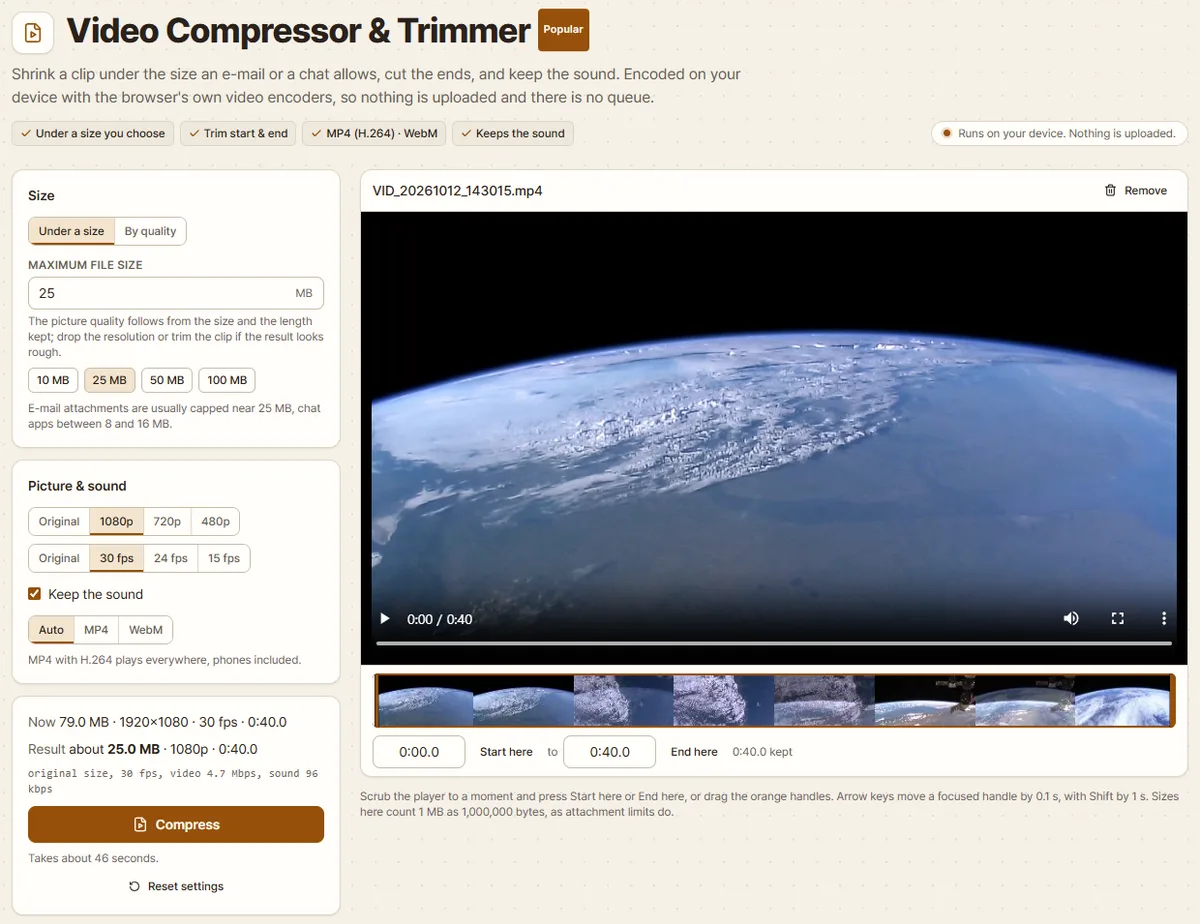
Click the box that says “Drop a video here, or click to choose”, or drag the file onto it. The “Now” line of the card at the bottom left read 79.0 MB · 1920×1080 · 30 fps · 0:40.0.
The defaults were “Under a size” at 25 MB, 1080p, 30 fps, “Keep the sound” ticked and the format on “Auto”. Before you press anything, the Result line says about 25.0 MB, with the plan below it: video 4.7 Mbps (megabits per second), sound 96 kbps.
2. Choose the target size
Under “Maximum file size”, press the button for where it goes (KakaoTalk 300 MB, Discord 20 MB, Naver Mail 10 MB, Gmail and Daum 25 MB) or type a number. For e-mail I kept the default of 25.
3. Compress and download
Press “Compress” to decode and encode the file directly, without playing it. Compatible sound is copied; otherwise it is encoded for the chosen format and budget. Time depends on the device, codec and settings and can exceed the clip length.
When direct reading is unavailable, the tool can fall back to encoding during playback. Only then does the note ask you to keep the tab visible. On a phone, keep the screen on and stay in the browser.
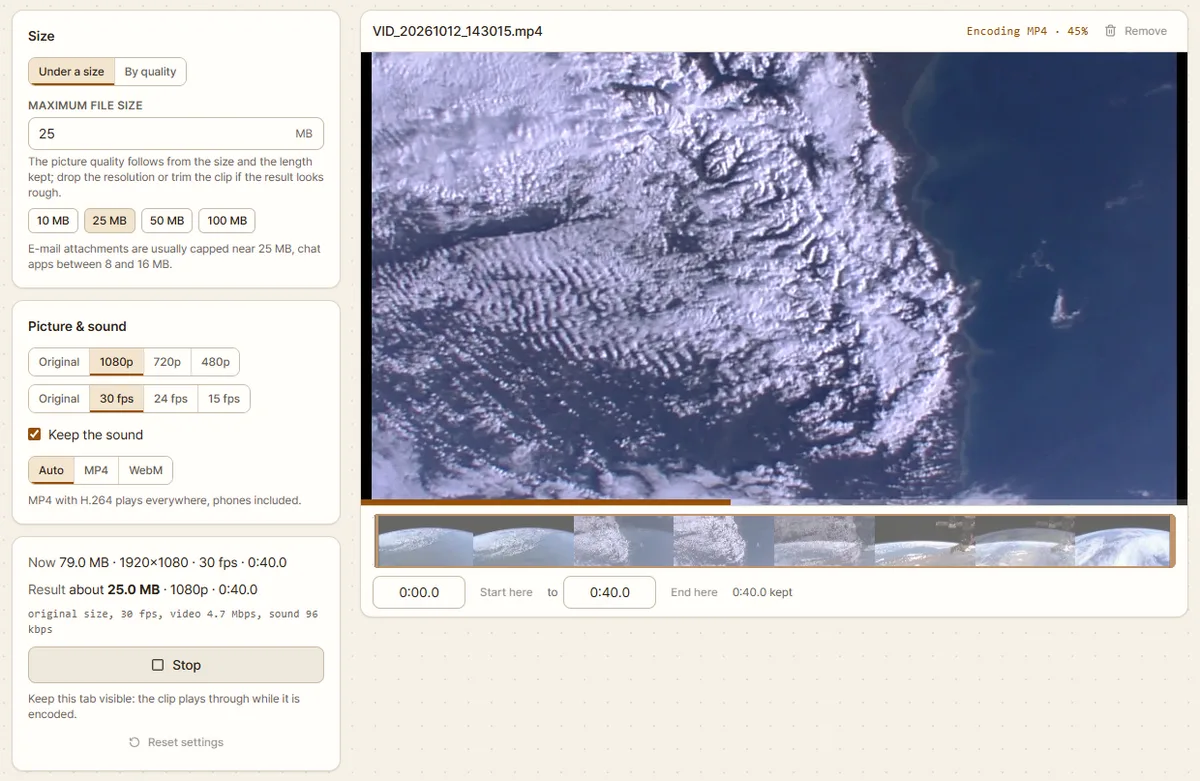
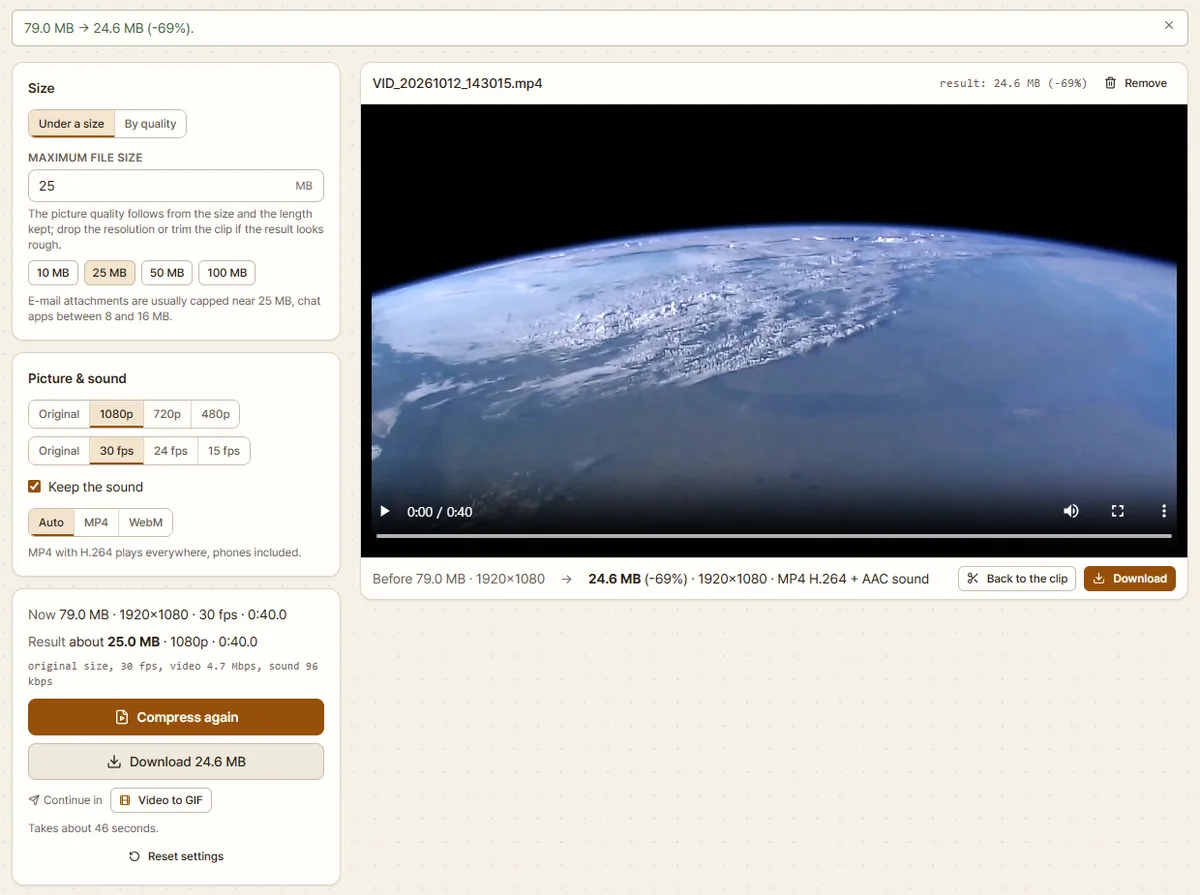
The screenshots and size below are from an earlier run. Current results can differ with the encoder and settings; read the result line for your own file:
79.0 MB → 24.6 MB (-69%).
Under the player the result is listed as MP4 H.264 with AAC sound. “Download” saved VID_20261012_143015-compressed.mp4.
4. Trim it for a chat app
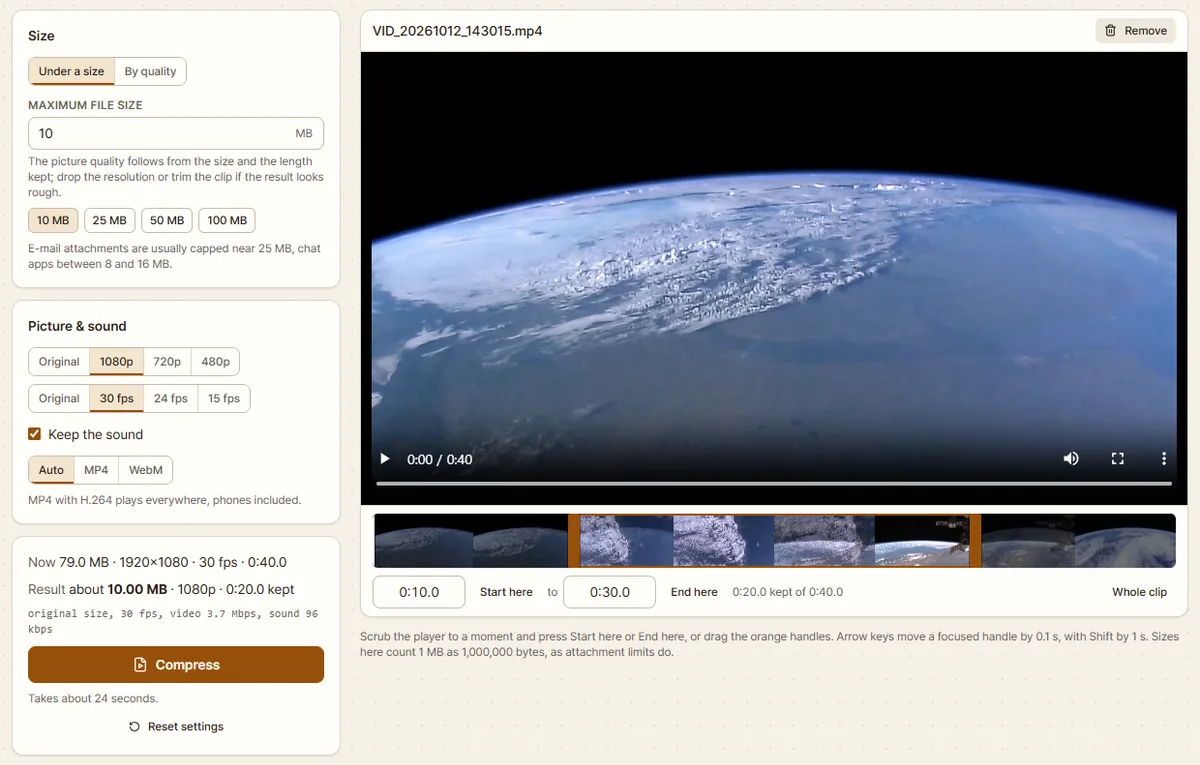
For a chat app with a 10 MB limit, I pressed “Back to the clip”, then the Naver Mail 10 MB button. For the whole clip the plan dropped to video 1.8 Mbps. I typed 0:10 in the start time box and 0:30 in the end time box. The trim row showed 0:20.0 kept of 0:40.0 and the plan rose to 3.7 Mbps.
Trimming applies to one file at a time. Confirm the start and end, then press “Compress”. Lowering a 30 fps source to 15 fps deliberately leaves out frames; it should not keep the original frame count.
Check the result
Play the download and check its first and last scene, duration and sound. If changing format, also try it on the receiving device. A larger result can still be useful when you need MP4 compatibility.
For several files, the tool processes each whole clip with the same settings and offers completed files in a ZIP. Check the list for failures or stopped files. With automatic format, a larger result may be replaced by the original, so check the extensions inside the ZIP.
When it does not work
The target cannot be reached. Trim the clip, lower the resolution or raise the limit. Re-encoding MP4 sound as AAC uses at least 96 kbps; copied source AAC can have a lower bitrate. Sound alone can consume the budget at very small targets. If the result is over the target, the tool retries at a lower bitrate and warns if it still does not fit.
The other person cannot play it. On “Auto” the tool writes MP4 when the browser can encode H.264. WebM playback depends on the receiving device and app. For compatibility, select MP4 and test it where it will be played.
The sound is gone. Check “Keep the sound” and the result details. Direct processing copies compatible sound, or encodes AAC or Opus as needed. The playback fallback has additional audio encoder and duration limits.
An iPhone MOV will not open. High Efficiency recordings use HEVC and require a supported decoder on the device. Renaming the extension does not help. Try Safari on a supported iPhone or Mac, or select Most Compatible in the camera formats for future recordings.
The video is already small. “Under a size” does not promise a smaller file. If size alone matters, use the original. If you need the chosen format, download and test the converted result even when it is larger.
Old settings are still on. “Reset settings” restores 25 MB, 1080p, 30 fps, sound on and Auto. A reload removes the clip and trim. Completed runs leave a size comparison in history, also saved to your account when signed in. The video file is never stored. You can stop recording or delete history on the History page.
How the size is worked out
A video’s file size is roughly its bitrate (data per second) times its length. The tool takes your target, sets aside room for the sound and the file structure, and divides the rest by the length to get the video bitrate. Keeping only the part you need lets the same size carry a higher bitrate.
Sample video: NASA, Earth Views from the International Space Station (2019), a work of the US federal government in the public domain. I took seconds 16 to 56 of the 1280×720 original, scaled them up to 1080p at 30 fps and re-encoded them like a phone recording. The original sound was removed and replaced with generated noise. Source: NASA Image and Video Library.
Try it with your own file. Nothing is uploaded.
Open Video Compressor & Trimmer