Merge PDF files into one, in your browser
Combine an application form, a reference letter and a scanned certificate into one PDF in the right order. Covers reordering, locked PDFs and file size.
By the operator of Dotori Tools4 min read
Open PDF ToolkitAn online application often has a single upload box for supporting documents. Your documents are separate files: a form you filled in, a reference letter someone e-mailed you, and a certificate you scanned. The portal wants one PDF, in a set order, under a size limit.
This guide merges three PDFs into one with the PDF Toolkit and puts the pages in order.
What you need
- The PDFs to merge. I made three sample files: 1_application-form.pdf (1 page), 2_reference-letter.pdf (2 pages) and 3_certificate-scan.pdf (1 scanned page).
- The order the receiving office asks for. I assumed form, then certificate, then letter.
- A computer browser. The tool page says “Runs on your device. Nothing is uploaded.” The files never reach a server.
1. Add the PDFs
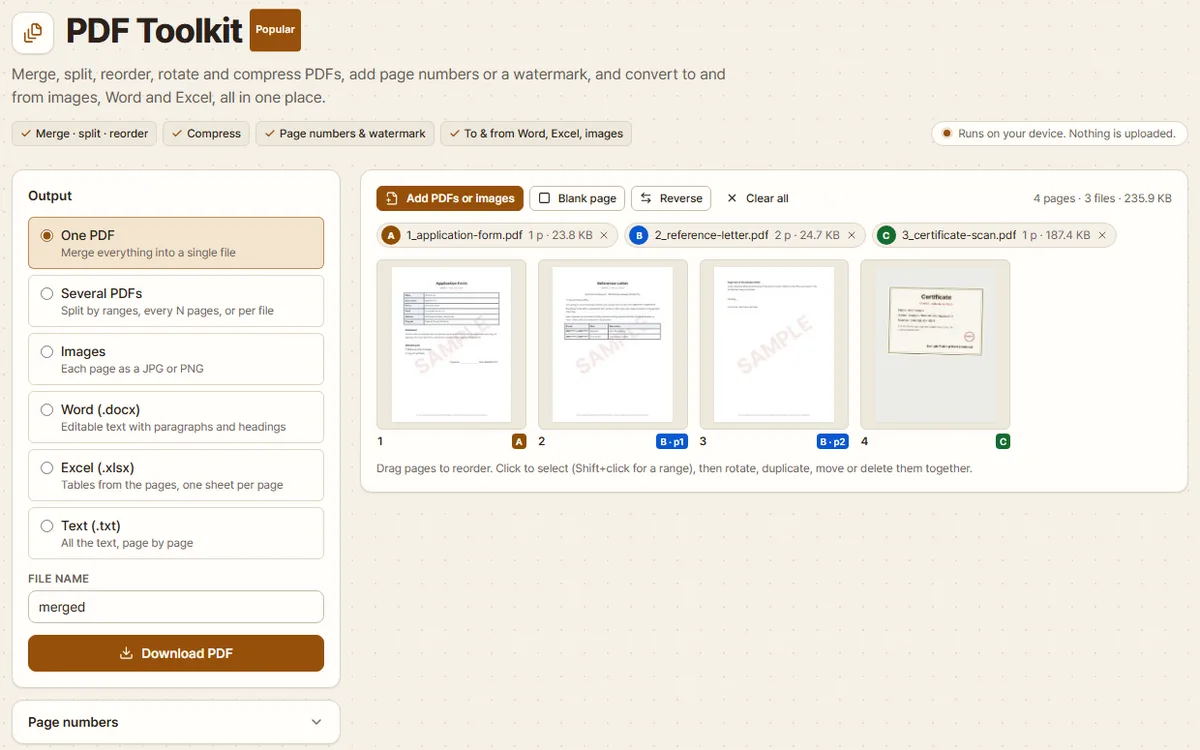
Click “Add PDFs or images”, or drag the files onto the page. I picked all three at once, and the top right of the page area read “4 pages · 3 files · 235.9 KB”.
Each file gets a letter and a colour, and every page appears as a thumbnail. The two-page letter shows up as two cards, B · p1 and B · p2.
The output was already set to “One PDF”, and the “File name” box said merged, the name the tool uses for two or more files. Pages land in the grid in the order the files were added, so numbered file names help.
2. Put the pages in order
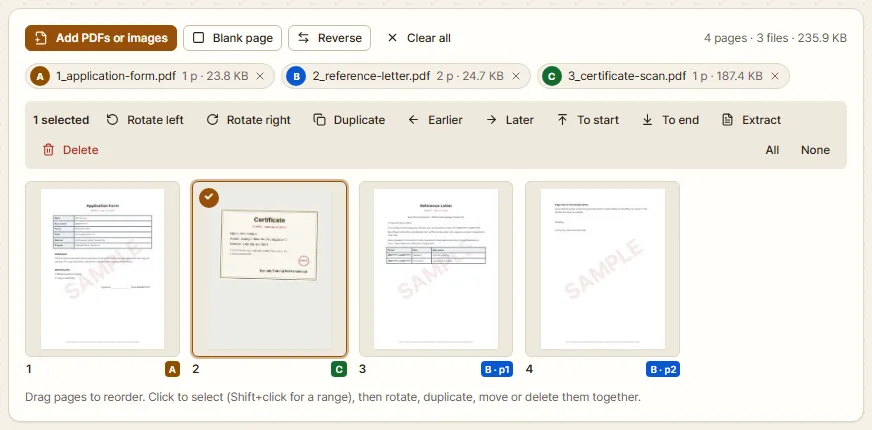
My certificate came last, as page 4, but it had to follow the form. I clicked its thumbnail once. A check mark appears, and a bar above the grid shows “1 selected” with buttons such as “Rotate right”, “Earlier” and “Delete”.
Two clicks on “Earlier” moved it up to page 2, and the letter pages moved down to 3 and 4. Dragging a thumbnail works too.
Order works page by page, not file by file, so a page can even sit between the two letter pages. Turn a sideways scan with “Rotate right” and remove a blank back page with “Delete”. “Reverse” flips the whole order.
3. Merge and download
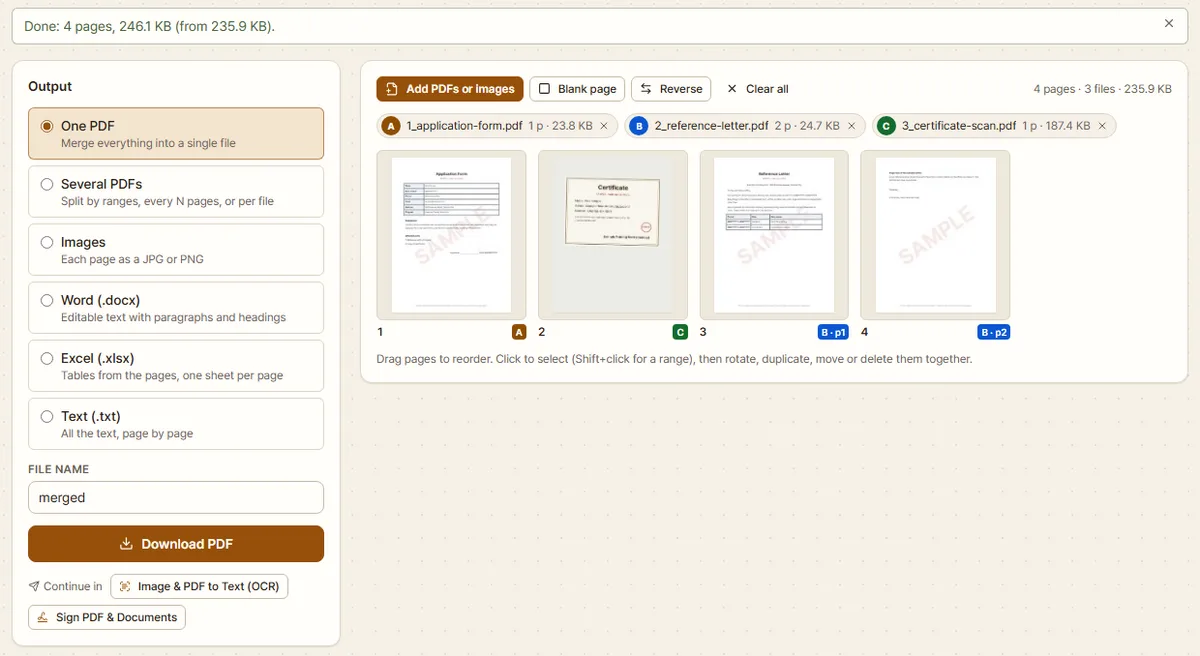
To use a different file name, change the “File name” box first. I left it as merged and clicked “Download PDF”. The file merged.pdf downloaded and this line appeared at the top:
Done: 4 pages, 246.1 KB (from 235.9 KB).
Check the result
The downloaded merged.pdf had 4 pages and 251,970 bytes. All four were US Letter size and ran form, certificate, then letter pages 1 and 2.
Text extraction found the text of the form and letter pages. The certificate page had none, as it was a scanned picture to begin with.
The merged file was a little larger than the three originals together: 246.1 KB against 235.9 KB. Merging alone does not shrink anything.
When it does not work
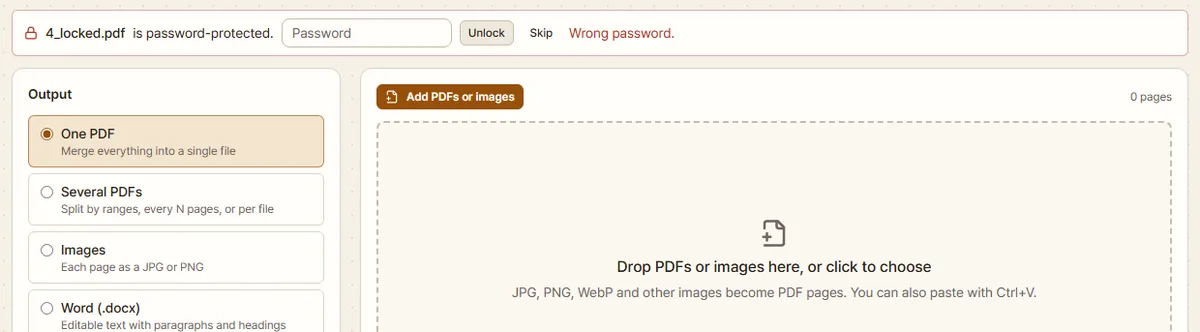
The PDF has a password. For a locked copy of the form the tool showed “4_locked.pdf is password-protected.” with a password box. Type the password and click “Unlock”. A wrong one gives “Wrong password.”, and “Skip” drops the file.
Once opened, the file carries the badge “Unlocked · pages copied as images”. Its pages go in as 200 dpi pictures, so their text cannot be selected. Merged on its own, that 24.6 KB file became 174.4 KB. A file you unlock is added at the end of the grid, so check the order again.
The file will not open. A file with nothing but a .pdf name and a PDF cut off halfway were both left out with a message like “5_damaged.pdf could not be opened: it may be damaged or not a PDF.” Download it again, or re-save it as PDF from the program that made it.
The document is a Word file. Only PDFs and images go in. A .docx file gave “1 file skipped: only PDFs and images can be added. For Word or Excel files, save them as PDF first.”
The certificate is a phone photo. JPG and PNG photos go straight in. The sample 3_certificate-scan.jpg became one page and opened the “Pages made from images” panel. With a US English browser its “Page size” was “US Letter, image fitted with a margin”.
The file is over the size limit. Check the limit in the office’s instructions. Under “File size” on the left, “Smaller” and “Smallest” turn every page into a JPEG picture. The text on the pages can then no longer be selected or searched. The tool’s help says this suits scans and photos, but text pages can get bigger. On my three samples, “Smaller” gave “Smaller would have made the file 362.0 KB instead of 246.1 KB, so the original quality was kept.”
Settings from last time are still on. The tool remembers every setting in this browser except the file name, title and author boxes: the output type and the “Page numbers”, “Watermark”, “File size” and “Pages made from images” settings, for example. It does not keep your files. After I chose “Smaller” and reloaded, the grid was empty and the “File size” heading still showed “on”. There is no reset button. To go back, choose “One PDF” under the output, “Keep quality” under “File size”, and untick “Add page numbers” and “Stamp text on the pages”.
How the merge works
The tool starts an empty PDF in your browser and copies each page into it, in the order shown in the grid. Pages are copied as they are, not redrawn: text stays text, and a scan keeps its picture. Only locked or protected files, and the occasional damaged file that still displays, are drawn in as pictures, because their pages cannot be copied. That is also why merging alone does not make a file smaller. If size matters, scan at a lower resolution in the first place.
The names, dates and details in the sample PDFs are made up for this guide.
Try it with your own file. Nothing is uploaded.
Open PDF Toolkit