Print address labels from Excel on Avery 5160 / L7160 sheets
Turn an Excel address list into a PDF that lines up with Avery 5160 or L7160 label sheets, then print it at actual size and check the alignment.
By the operator of Dotori Tools5 min read
Open Label MakerAn address spreadsheet needs one label per row, printed without scaling. A small shift can put text over the label edge.
This guide takes an Excel file through the Label Maker to a PDF that fits Avery 5160 sheets. For A4 paper the tool also lists Avery L7160, and the steps are the same.
What you need
- An address list in Excel (.xlsx) or CSV, with column names in the first row. My sample file, addresses-sample.xlsx, has 18 people in five columns: Name, Street, City, State and ZIP.
- Address labels. Avery’s 5160 page lists 30 labels per sheet, each 1 × 2-5/8 inches (checked October 2026). The tool’s 5160 template has the same count and size, laid out as 3 columns by 10 rows on US Letter.
- A computer browser and a printer. The tool says “Your design and data stay in this browser. Nothing is uploaded.”
1. Choose the sheet
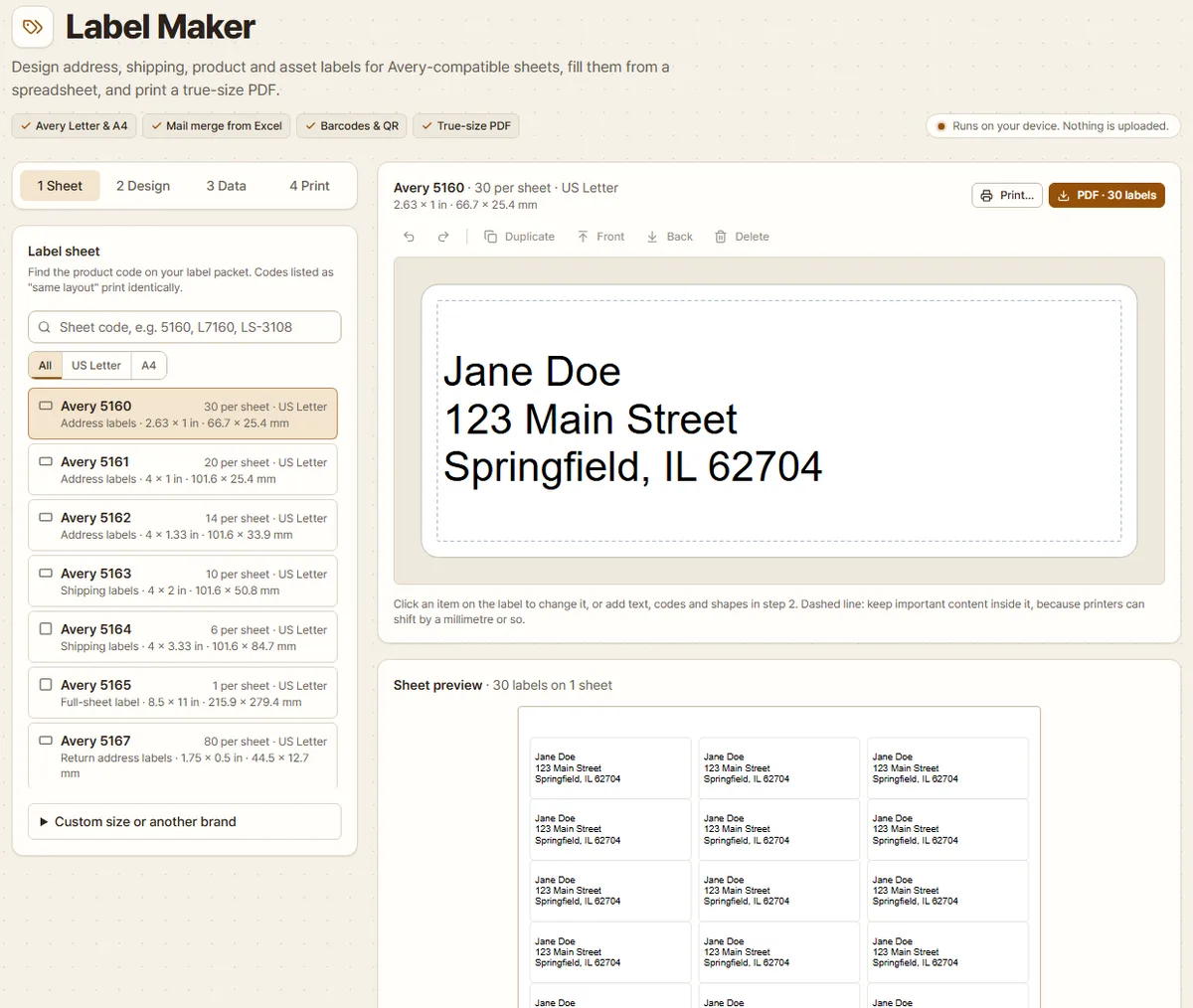
With a US English browser, the tool opens on the “1 Sheet” tab with Avery 5160 selected: “Address labels”, 30 per sheet on US Letter.
For another sheet, type the code from the pack into the “Sheet code, e.g. 5160, L7160, LS-3108” box. L7160 finds Avery L7160: 21 per sheet on A4, 63.5 × 38.1 mm. Avery’s L7160 page gives the same count and size (checked October 2026). With a UK English browser, the tool starts with L7160.
Typing 8160 brings up 5160 with “Same layout as 8160” under it. Codes listed as “same layout” print identically.
2. Open the address list
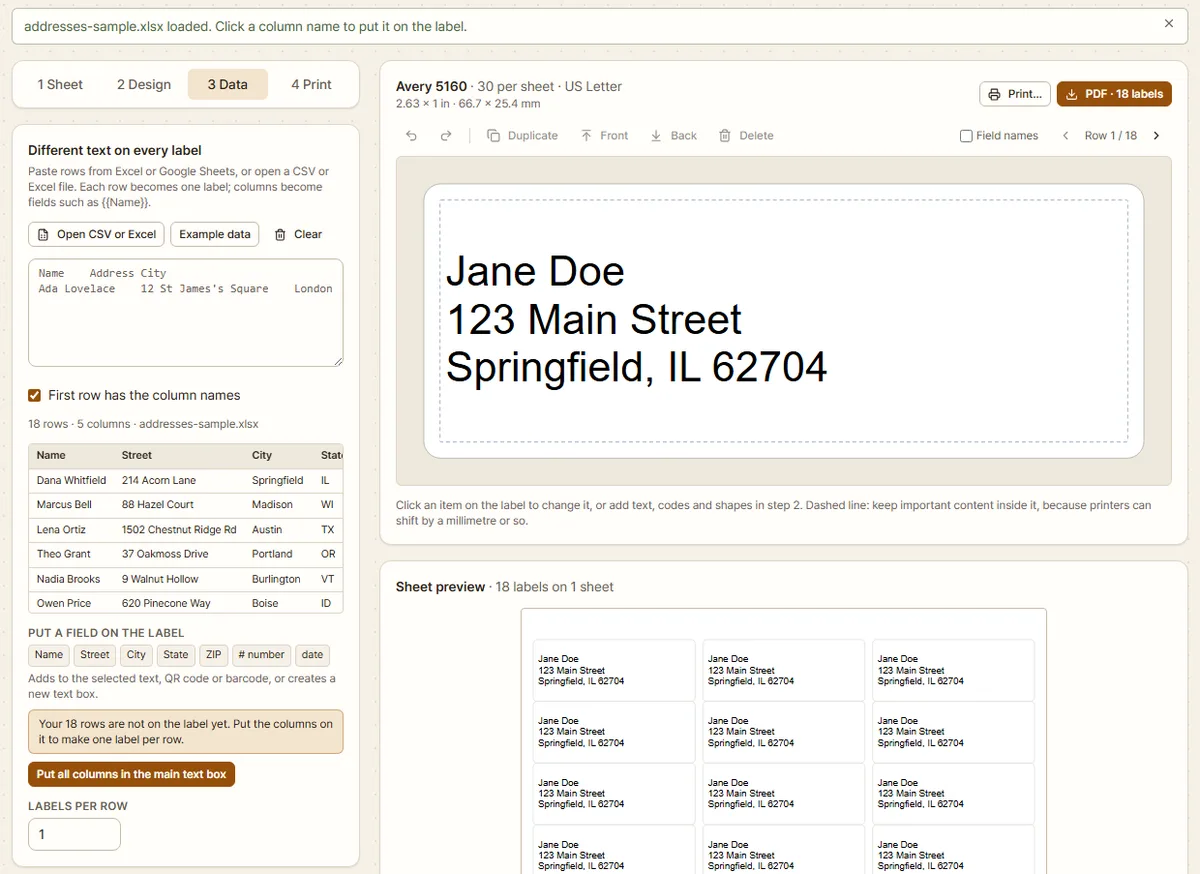
On the “3 Data” tab, click “Open CSV or Excel” and choose the file. Mine showed “18 rows · 5 columns · addresses-sample.xlsx” above the table, and “First row has the column names” was already ticked. If your first row is a real address rather than headings, untick it, or the first person is left out.
Under “Put a field on the label” each column has a button. Loading rows does not yet put them on the label.
3. Put the address on the label
When the column names include an address and a name or postcode, an “Address book detected” card appears. Check its column assignments and address style, then click “Make address labels”. The tool places the address in a main text box and switches to “2 Design”. For US addresses the city, state and ZIP share a line. Choose the Korean style when needed.
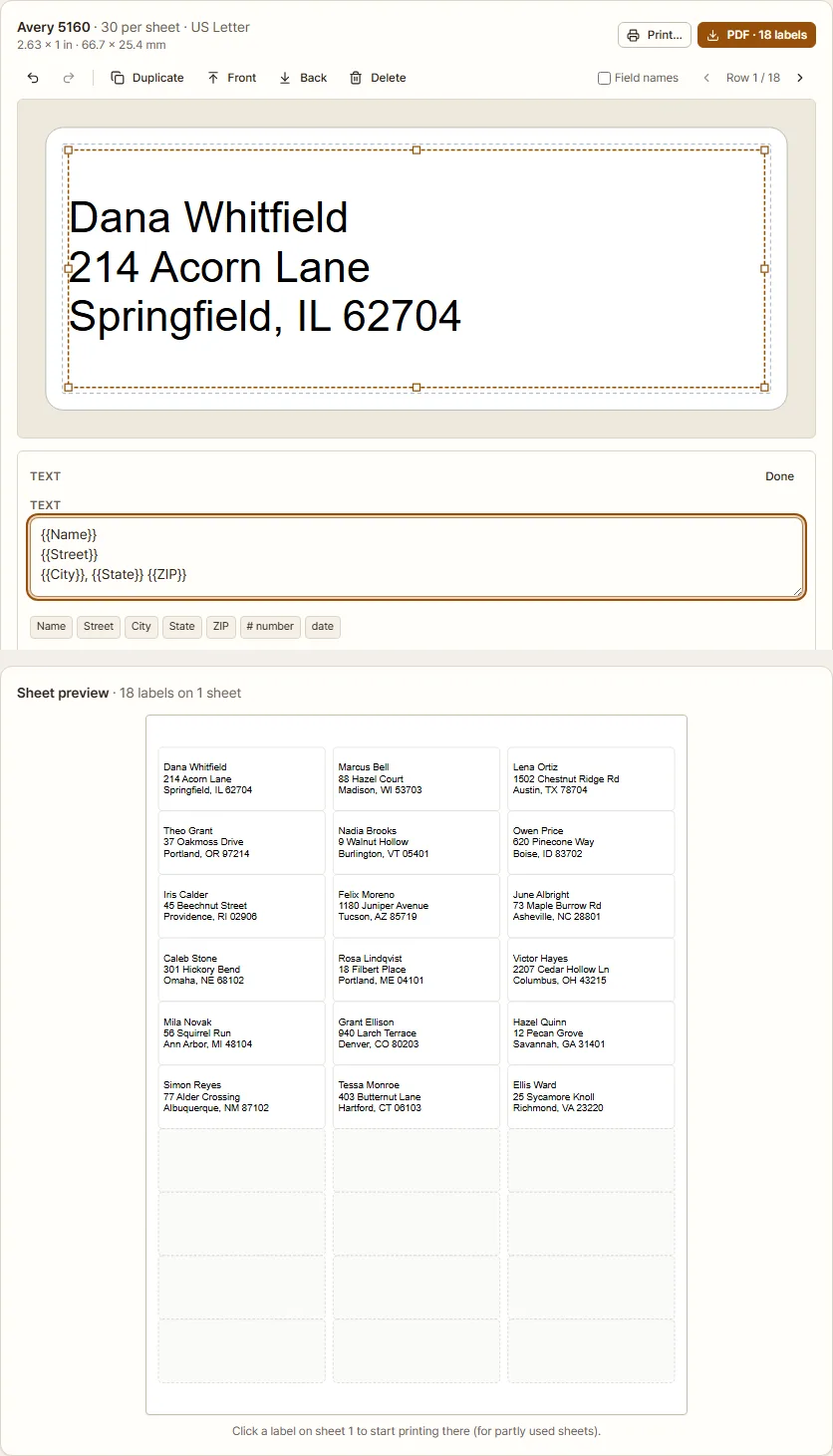
If detection picks a wrong column, correct it on the card. To lay out every field yourself, use “Put all columns in the main text box” and edit “Text”. Each name in double braces, such as {{Name}}, is replaced by that row’s value. The picture below shows a manually arranged three-line example.
The label now shows the first row, Dana Whitfield. The “Sheet preview” has 18 of its 30 labels filled and the last four rows empty. Long lines wrap at a space, and text that still does not fit gets smaller, because “Shrink to fit the box” is on from the start.
4. Download the PDF
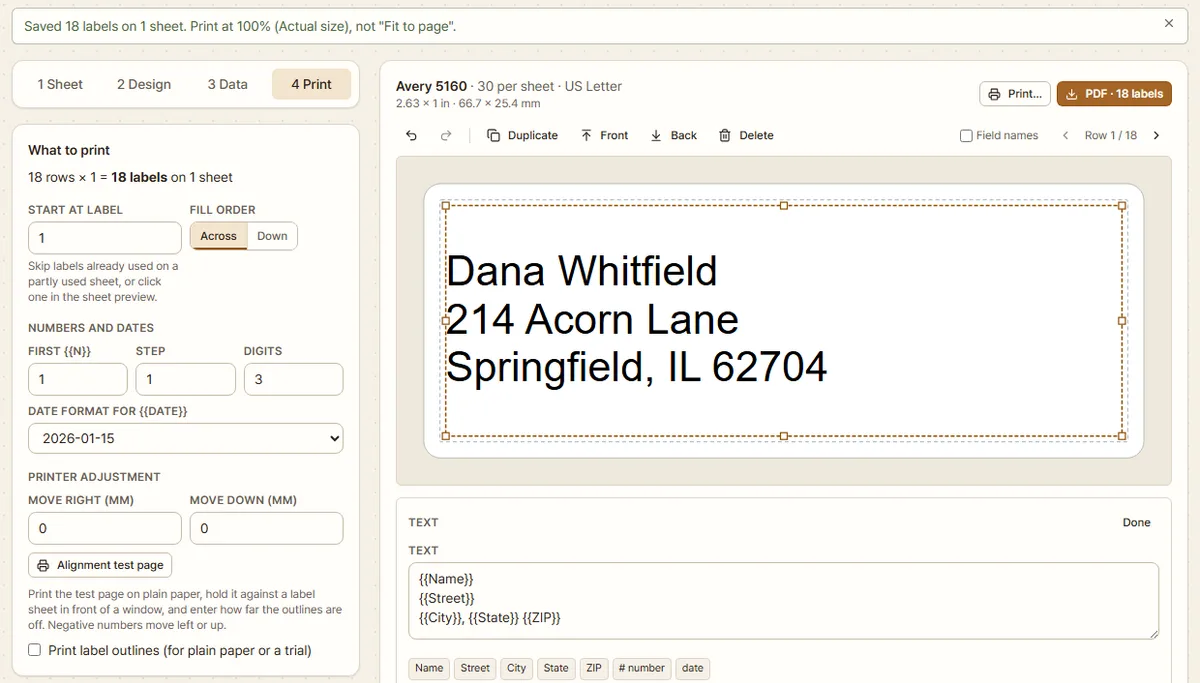
The “4 Print” tab counts the job: 18 rows × 1 = 18 labels on 1 sheet. I clicked “PDF · 18 labels” at the top right. The PDF downloaded and the tool said:
Saved 18 labels on 1 sheet. Print at 100% (Actual size), not “Fit to page”.
Check the result
The PDF uses the selected paper’s actual dimensions. Shapes, barcodes and QR codes are vector paths. Text supported by the built-in PDF fonts stays text; blocks containing Korean, emoji or other unsupported characters are rendered as 600 dpi pictures. Not all text is selectable, and Korean fonts are not embedded.
On “4 Print”, review warnings about overflowing text, unresolved fields, invalid barcodes and content near an edge. Fix the relevant elements, and preview rows with long addresses as well as the first row.
Before you print on a label sheet, click “Alignment test page” and print the downloaded PDF on plain paper. It shows every label outline with its number and a ruler along the bottom. If the ruler is not exactly 100 mm, the printer scaled the page. Then hold the paper against a label sheet in front of a window. If the outlines are off, enter the difference in “Move right (mm)” and “Move down (mm)”. Negative numbers move the print left or up.
When it does not work
The print drifts off the labels. The print dialog is probably set to “Fit to page”. Set the scale to 100% or “Actual size”.
A ZIP code lost its leading zero. If 05401 sits in a number cell with a 00000 format, the tool reads the format and brings in 05401. A plain number cell with no format still gives 5401: format that column as Text in Excel and type the codes again.
The file is an old .xls. The tool does not read .xls files. In Excel, use Save As and choose .xlsx or CSV.
The sheet is partly used. My 18 labels leave 12 blank on a 5160 sheet. Next time, enter 19 in “Start at label”, or follow the hint “Click a label on sheet 1 to start printing there (for partly used sheets).” The labels before it stay blank. The tool remembers this number, so set “Start at label” back to 1 before the next full sheet.
The old list is still there. The tool remembers the sheet, the design, the data, “Start at label” and “Printer adjustment” in this browser. On a shared computer, clear the data when you finish. Opening a new file replaces the data, and “Clear” on the 3 Data tab removes it.
How the labels line up
Each template stores the label positions in millimetres. The PDF uses those dimensions, so print at 100% and run an alignment test for a new printer.
The names and street addresses in the sample list are made up for this guide.
Try it with your own file. Nothing is uploaded.
Open Label Maker